Prerequisites
Network Topology
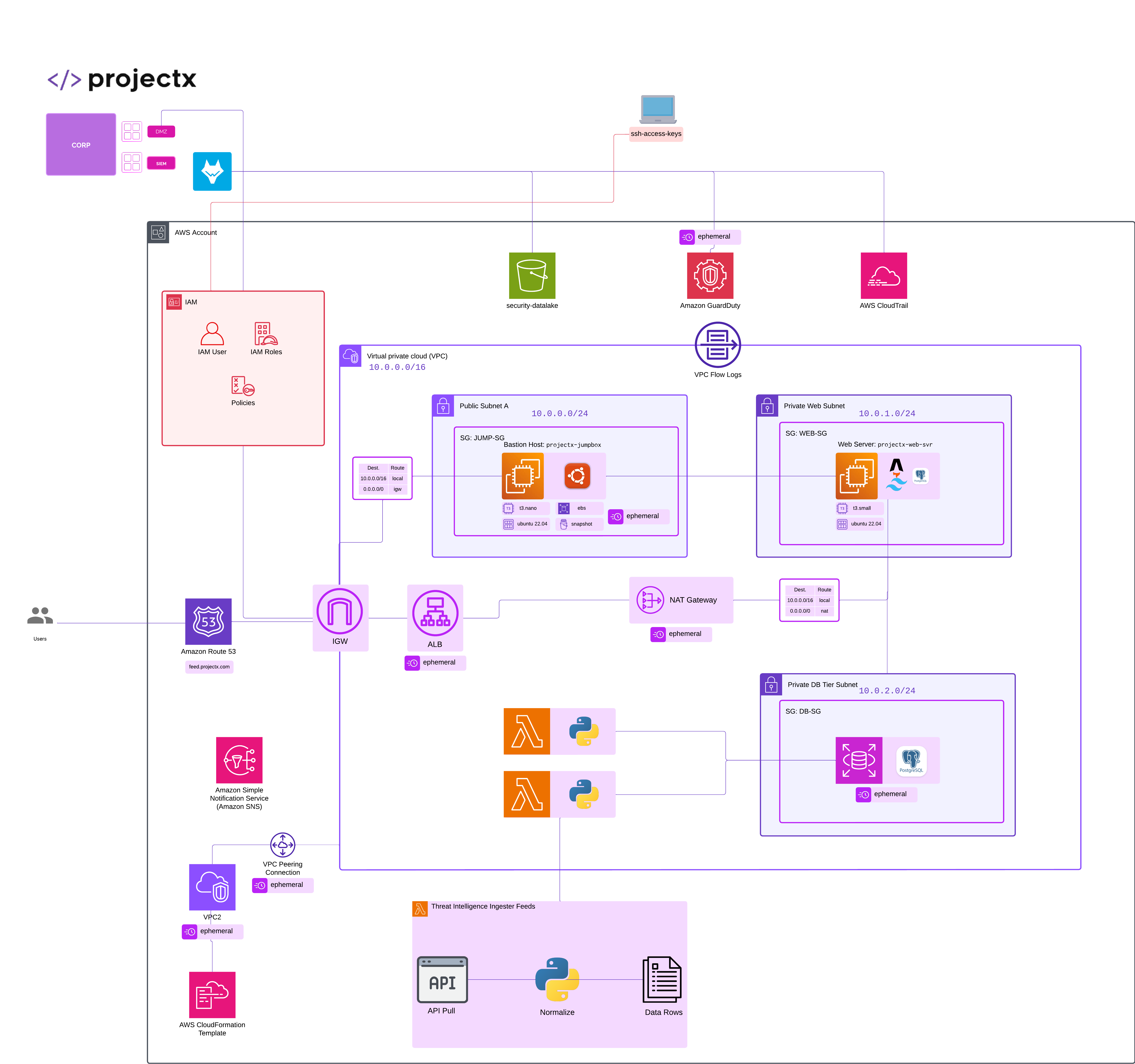
Overview
What is AWS CLI?
The AWS Command Line Interface (CLI) is a unified tool to manage your AWS services. With just one tool to download and configure, you can control multiple AWS services from the command line and automate them through scripts.
Common Use Cases include managing AWS resources through the command line, automation deployments via CI/CD pipelines, and script integrations.
The AWS CLI is a good back up tool to have, although we will not be interfacing too much with it throughout CA101.
Install AWS CLI
Windows
MSI Installer
- Download the AWS CLI MSI installer:
- Visit: https://awscli.amazonaws.com/AWSCLIV2.msi
-
Or download from: https://aws.amazon.com/cli/
-
Run the installer:
- Double-click the downloaded
.msifile - Follow the installation wizard
-
Accept the default installation location
-
Verify installation: Open PowerShell or Command Prompt:
👉 After installation, you may need to restart your terminal or PowerShell window.
macOS
Using Homebrew
If you have Homebrew installed:
Verify installation:
Linux
Using Package Manager
# Update package list
sudo apt-get update

# Install AWS CLI
sudo apt-get install awscli -y

# Verify installation
aws --version
Configure AWS CLI
After installing AWS CLI, you need to configure it with your AWS credentials.
Prerequisites
You'll need a AWS Access Key ID and AWS Secret Access Key for projectx-prod-admin IAM user account.
👉 To create access keys, go to IAM ➔ Users ➔ Your User ➔ Security Credentials ➔ Create Access Key.
Configuration Steps
Run the configure command:
You'll be prompted for the following:
-
AWS Access Key ID: Enter your access key ID
-
AWS Secret Access Key: Enter your secret access key
-
Default region name: Enter your preferred AWS region
-
Default output format: Choose your preferred output format (optional)
Common formats: json, yaml, text, table
Configuration File Location
AWS CLI stores your credentials and configuration in:
Windows:
macOS/Linux:
Verify Configuration
Test your configuration:
# List your AWS account information
aws sts get-caller-identity

# List S3 buckets (if you have any)
aws s3 ls

# List EC2 instances
aws ec2 describe-instances
👉 If you see your account information, your AWS CLI is configured correctly!